
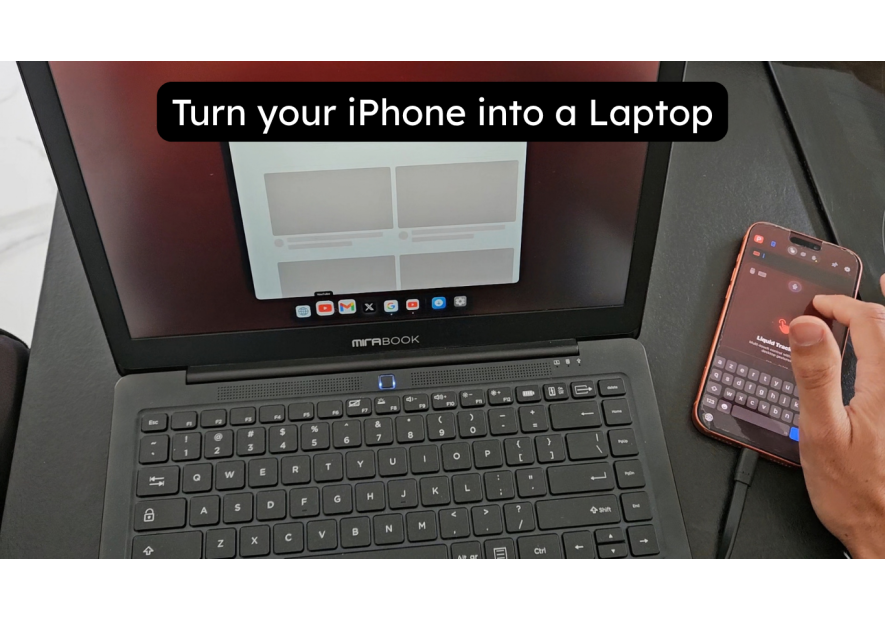
Turn your Samsung Galaxy S26 into a PC — Samsung DeX + Lapdock Guide 2026
The Samsung Galaxy S26 is not just a smartphone. With Samsung DeX built in and the right lapdock, it is a full laptop replacement — keyboard, trackpad, widescreen display, and all your apps running in proper windowed mode. No compromises.
I have been using a Samsung Galaxy S26 lapdock setup as my daily driver for months. This guide covers everything: how DeX works on the S26, which lapdocks are compatible, how to set it up in under two minutes, and what to buy depending on your budget and use case.
What is Samsung DeX on the Galaxy S26?
Samsung DeX is Samsung's desktop experience mode, and it is baked into every Galaxy S26 at the firmware level. When you connect your S26 to a compatible display via USB-C, the phone automatically switches into a windowed interface that works like a real desktop operating system.
You get:
- Resizable, overlapping app windows — not just a mirrored phone screen
- Full keyboard and trackpad/mouse support
- A taskbar, notifications tray, and file manager
- Multi-tasking across apps simultaneously
- Continued phone functionality — calls, messages, and notifications still come through
On the Galaxy S26, DeX is faster and more stable than ever. Samsung's latest Snapdragon chip handles multi-window workloads without throttling. I ran Chrome with 20 tabs, Slack, a document editor, and a spreadsheet open simultaneously — no slowdown.
The key thing to understand: DeX activates automatically when you plug into a lapdock or external display via USB-C. No app to open, no settings to change. Just plug in and work.
Compatible lapdocks for the Samsung Galaxy S26
Not every USB-C dock triggers DeX — you need a lapdock or display that supports DP Alt Mode (DisplayPort over USB-C). Any lapdock sold specifically for Samsung DeX will work. Generic USB-C hubs without DP Alt Mode will not launch DeX.
The lapdocks I recommend for the S26:
NexDock — the specialist choice
The NexDock is built specifically for Samsung DeX and Android Desktop Mode. Full HD IPS display, proper keyboard with number row, a trackpad tuned for DeX gestures, and 65W power delivery so your S26 charges while you work. This is what I use daily. It costs more than generic alternatives, but the build quality and DeX compatibility are worth it.
MiraBook — refurbished value
The MiraBook (Refurbished) is for users who want a proven DeX lapdock at a lower price point. Same concept as the NexDock — USB-C in, full desktop out — but refurbished stock means better value. A solid option if you want to try a Samsung Galaxy S26 lapdock setup before committing to the premium tier.
Browse the full lapdock collection to compare models, screens, and ports.
Step-by-step Samsung Galaxy S26 lapdock setup
Setting up your S26 with a lapdock is genuinely fast. Here is the exact process:
- Charge your lapdock — make sure it has enough battery or is plugged in
- Turn on the lapdock — power button, wait for the "connect your device" screen
- Plug the USB-C cable from the lapdock into your Galaxy S26
- DeX launches automatically — the S26 screen dims, the lapdock shows the DeX desktop
- Start working — open apps from the taskbar, resize windows, use the trackpad
That is it. Two minutes from unboxing to working desktop. No drivers, no installation, no pairing process.
One tip: in Settings → Connected devices → DeX, you can enable "Start DeX automatically when connected." This makes the transition even faster — plug in and DeX is already loading before you even look at the lapdock screen.
Docking station alternative — S26 at your desk
If you have a fixed desk setup and already own a monitor, a docking station is more practical than a lapdock. Your S26 connects to the dock, the dock outputs to your monitor, and you use your own keyboard and mouse.
The MiraDock is the dock I use at my desk. One cable from the S26, and I get HDMI out to my monitor, USB-A for keyboard and mouse, and simultaneous charging. The MiraDock was designed for DeX — DP Alt Mode confirmed, clean build, no compatibility surprises.
The desk dock + lapdock combination is actually what I run: MiraDock at home, NexDock in my bag. The S26 is the constant — my data, apps, and work live on the phone. The accessories are just different shapes of screen.
Buying section — what to get for your S26 lapdock setup
Here is the short version based on your situation:
- Travel-first users: NexDock — all-in-one lapdock, premium build, best DeX experience on the road
- Budget-conscious users: MiraBook Refurbished — proven hardware at a reduced price
- Desk users: MiraDock — connect to your existing monitor and peripherals
- Mixed use (desk + travel): MiraDock at home + NexDock in bag — the dual setup that removes any reason to carry a laptop
All products are available with European shipping from Mobile-Only Store, the specialist shop for Samsung DeX and lapdock accessories.
Is the Samsung Galaxy S26 lapdock setup worth it?
For anyone who already carries a Galaxy S26, yes — completely. The phone you already own and pay for becomes your computer. You stop carrying a separate laptop. You have one device, one charger, one set of data and apps. The lapdock is just the keyboard and screen.
The S26's processing power makes this genuinely viable for knowledge work: writing, spreadsheets, email, video calls, coding with mobile IDEs, and light browser-based tasks. It is not a workstation replacement for heavy video editing or 3D rendering — but for 80% of office work, it is more than enough.
I have been laptop-free for months using this setup. The Samsung Galaxy S26 lapdock combination is the most practical way I have found to carry one device and still be productive anywhere.
If you have questions about compatibility or which lapdock fits your workflow, reach out — happy to help.
Take care,
Yanis@MiraLab