
Android 16 Desktop-Modus: Die Zubehörteile für Pixel
In March 2026, Google changed something quietly significant. Android 16 QPR3 shipped native desktop mode — no developer options, no hidden toggles, no Samsung-only feature. You plug your Pixel into a screen and it asks: desktop or mirror?
For anyone who has followed the smartphone-as-PC story for the past decade, this moment was inevitable. For everyone else, it's new territory. This guide covers everything you need to know about Android desktop mode accessories — what works, what doesn't, and how to build a setup that actually makes you more productive.
What changed with Android 16 native desktop mode
Until Android 16 QPR3, "desktop mode" on non-Samsung phones was either a hidden developer setting, a third-party hack, or simply unavailable. Android 16 changes that. On supported Pixel devices (Pixel 8 and newer), connecting to an external display now triggers a proper desktop experience: a taskbar, resizable windowed apps, drag-and-drop, and a separate phone screen that stays usable independently. This is Android's native desktop windowing — not a skin, not a hack.
The one non-negotiable: DisplayPort Alt Mode over USB-C
Before buying anything, verify one thing: does your phone support DisplayPort Alt Mode over USB-C? Without it, your phone can only mirror its screen — no desktop mode. Confirmed support on: Pixel 8, 8 Pro, 9 series, 9 Pro series, and Pixel Fold. Pixel 6 and 7 are not supported.
Option 1: The lapdock — all-in-one portable desktop
A lapdock is the cleanest solution for mobile desktop mode. It contains everything — screen, keyboard, trackpad, and battery — in a single unit. One USB-C cable connects your Pixel and you have a full laptop form factor, powered by your phone.
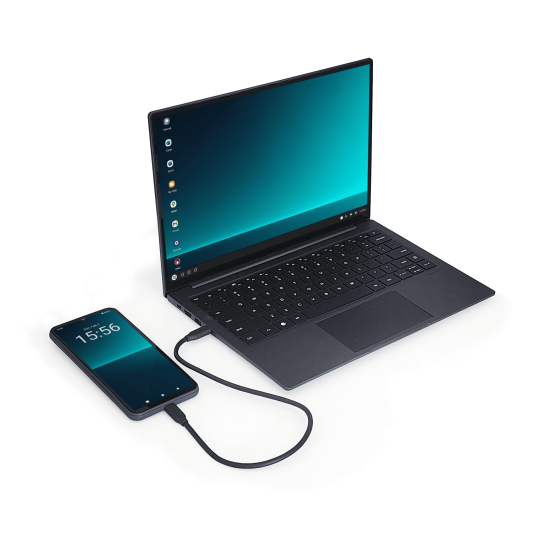
The NexDock is fully compatible with Android desktop mode on Pixel. Its DisplayPort Alt Mode support means that when you plug in a Pixel 8 or newer, it triggers native desktop mode automatically. No setup, no configuration — just plug and work.
- Single cable setup — no adapters, no hubs, no power bricks
- Built-in battery charges your phone while you work
- Keyboard and trackpad designed for the form factor
- Completely portable — same footprint as a thin laptop
Option 2: Docking station + external monitor
If you work from a fixed desk, a docking station gives you a more powerful setup: larger screen, full-size keyboard, proper mouse, and as many peripherals as you need.
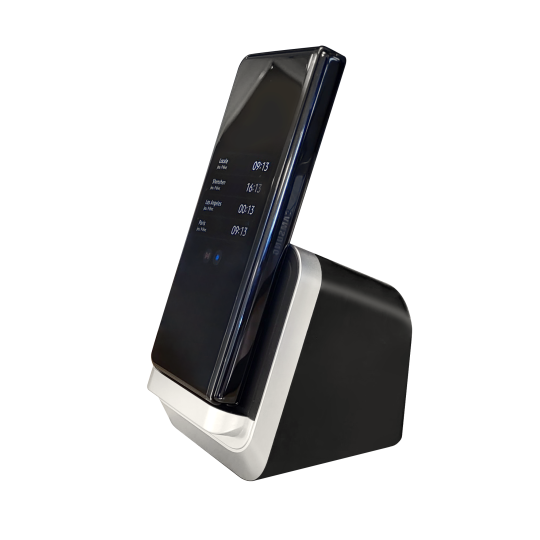
The MiraDock works cleanly with Android desktop mode. Connect your Pixel via USB-C, connect MiraDock to your monitor via HDMI or DisplayPort, and your desktop environment appears on the external screen while your phone screen stays available for notifications.
For a simpler multi-device option, the USB-C Docking Station offers HDMI output, USB-A ports, and power delivery — works with Pixel and Samsung Galaxy both.
Option 3: Just the adapter — minimal and flexible
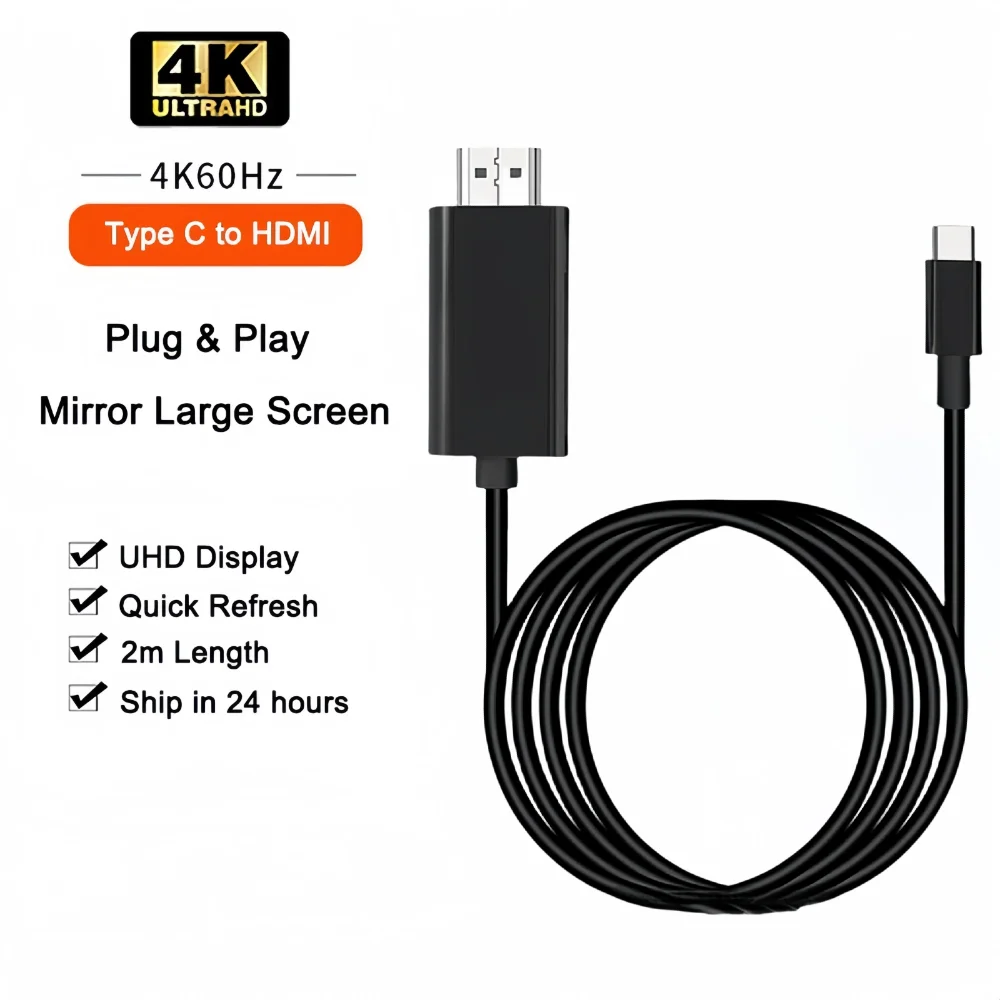
The 4K 60Hz USB-C to HDMI Adapter connects your Pixel to any HDMI display and triggers desktop mode automatically on Android 16. Add a Bluetooth keyboard and mouse. One adapter, full desktop mode, from your pocket.
The touchscreen option: DisplayDock all-in-one
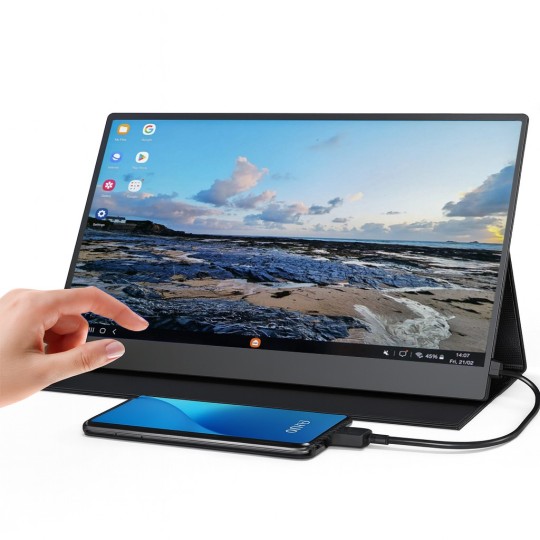
The DisplayDock UPERFECT 15.6" is worth highlighting for Android desktop mode specifically. Its touchscreen support means you can interact with desktop apps by touch — no mouse required. Combined with the keyboard dock, it works as a standalone portable desktop station.
Android 16 desktop mode vs Samsung DeX: what's the difference?
Samsung DeX has been the reference implementation of Android desktop mode since 2017. Android 16's native desktop mode is essentially Google bringing an equivalent experience to all Android phones — starting with Pixel.
- DeX has deeper app optimisation — more apps are specifically tested for DeX
- Android 16 desktop mode is more universal — works on any Android 16 phone with DisplayPort
- Accessories are interchangeable — a lapdock or hub that works with DeX also works with Android 16 desktop mode
In practice: Pixel → Android desktop mode. Galaxy → DeX. Same accessories work for both.
Building your Pixel desktop setup
| Setup | What you need | Best for |
|---|---|---|
| Ultra-minimal travel | 4K USB-C HDMI Adapter + BT keyboard + BT mouse | Hotel rooms, lightweight bag |
| All-in-one portable | NexDock lapdock | Daily mobile work |
| Full desk setup | MiraDock + external monitor + peripherals | Home office, power users |
| Touchscreen portable | DisplayDock UPERFECT 15.6" | Creative tasks, no fixed desk |
What to check before you buy
- Confirm your phone supports DisplayPort Alt Mode — check the spec sheet, not just USB-C presence
- Check USB-C cable quality — not all cables carry DisplayPort signal. Use USB 3.1 Gen 2 or Thunderbolt rated cable
- Verify power delivery — your accessory should charge your phone, not compete with it
- Test your most-used apps — most productivity apps work well in desktop mode
Android 16 desktop mode is the moment the Mobile-Only vision goes mainstream — beyond Samsung, beyond niche enthusiasts, into the hands of anyone with a recent Pixel. The accessories that make it work have existed for years. Now the software has caught up.
Browse our full range of lapdocks and docking stations — all tested for DisplayPort Alt Mode compatibility with Pixel and Samsung Galaxy.
Take care,
Yanis@MiraLab